Duo · Laptop Mode on iPhone Duo
Use iPhone Duo Laptop Mode to control your Mac
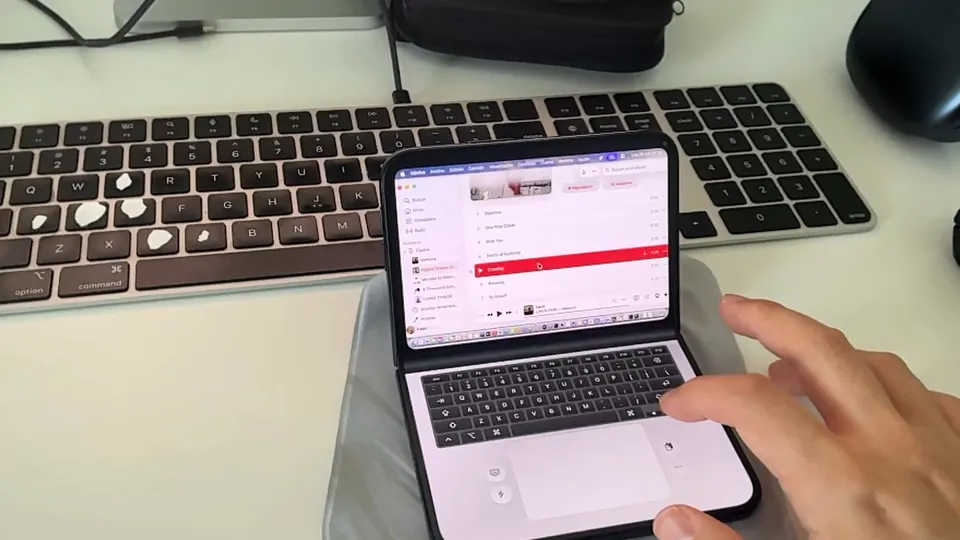
Open Laptop Mode in Remoted to see your Mac desktop above the hinge and use the keyboard and trackpad below. Here’s how to turn it on and adjust the layout.
Requirements and compatibility
You need an iPhone Duo running iOS 26.5 or later and a Mac with Screen Sharing enabled. Laptop Mode has been available on Duo since Remoted 1.2.1.
Connections require Remoted Complete.
Open Laptop Mode
- Connect to your Mac in Remoted on Duo. Open the remote toolbar’s ellipsis menu and choose Laptop Mode. It is off by default.
- Use the Duo with the screen above the keyboard and the hinge horizontal. Laptop Mode keeps its owning window in portrait orientation.
Keyboard, trackpad and layouts
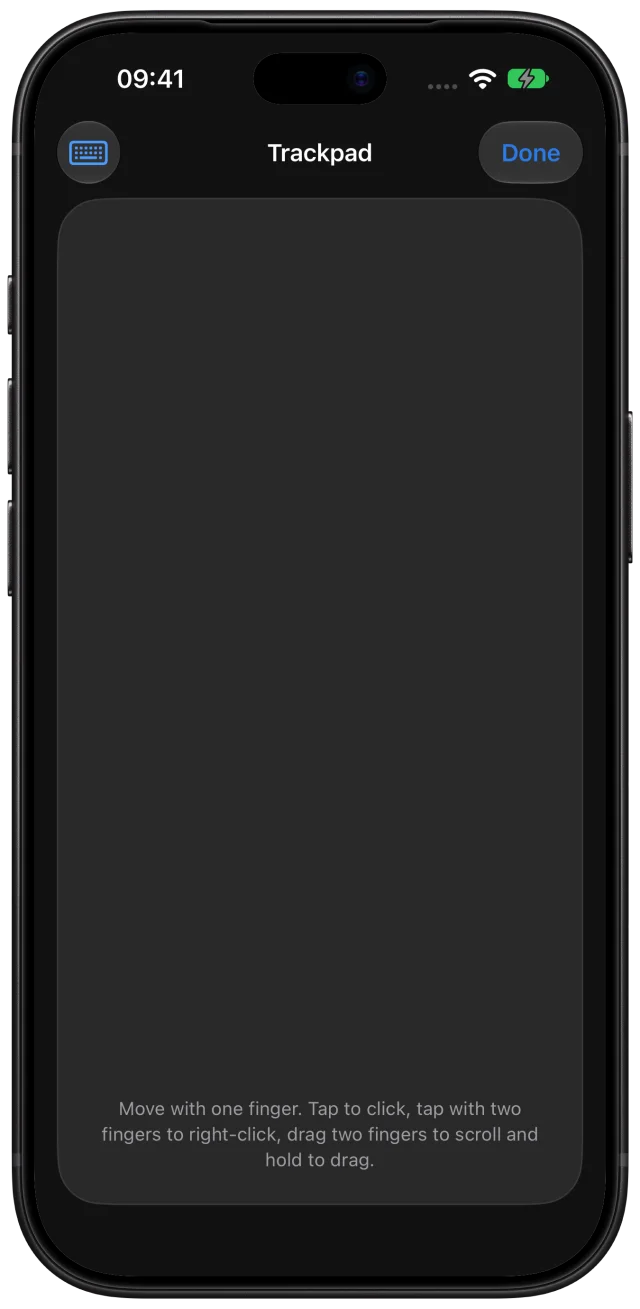
The keyboard button hides the keys to give the trackpad more room. Quick Actions and Clipboard remain beside it. In the deck’s ellipsis menu, open Layout, Trackpad settings or Sounds, or choose Exit Laptop Mode.
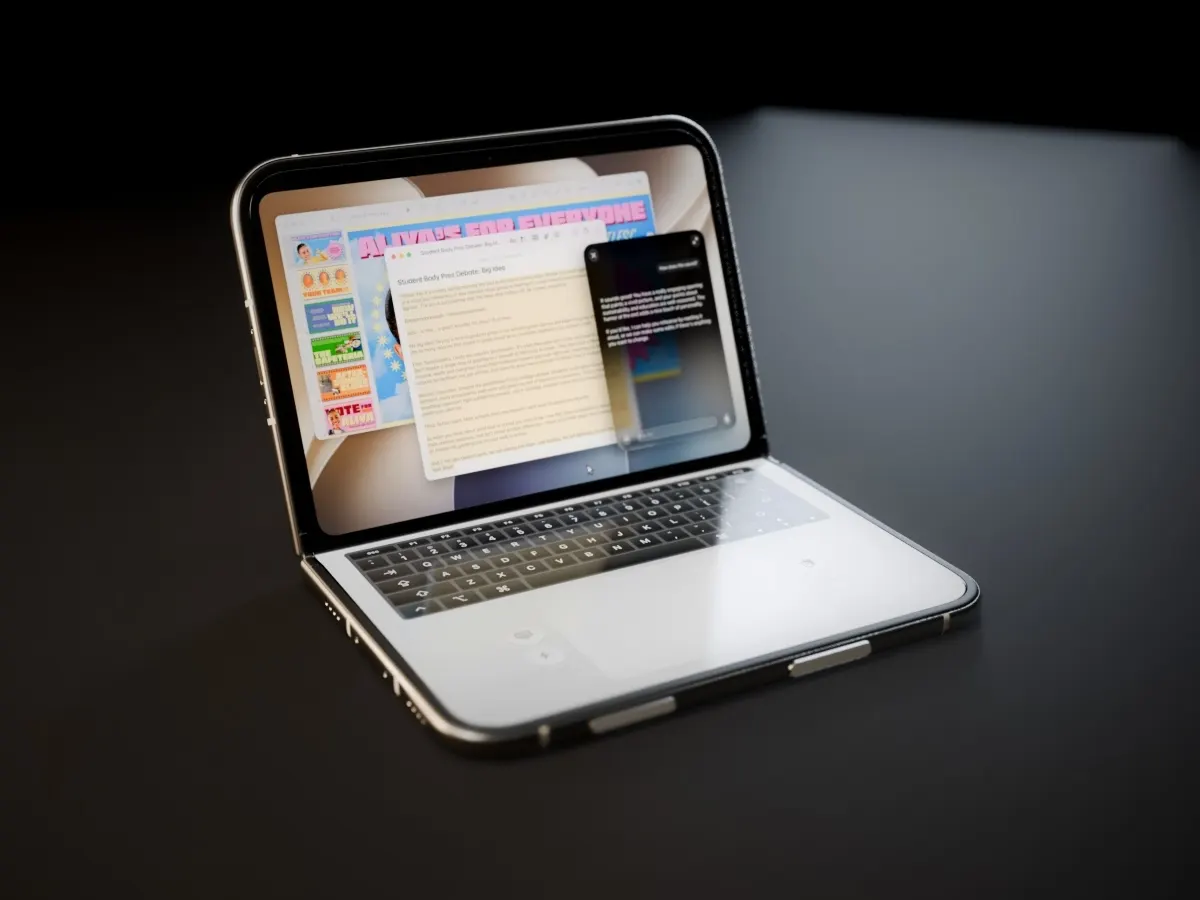
Choose Silver, Black or Classic in Layout. The finish and sound choices are remembered on your device. Closing the Duo suspends input while retaining the session; use Exit Laptop Mode to return to the ordinary desktop.
How the screen fits
In a supported single-display High Performance session, Laptop Mode can fit the desktop to the opening above the keyboard. Exiting restores your saved resolution preference. Standard, unsupported hosts and two-display sessions keep their existing configuration.