Troubleshoot
Remoted won’t connect to your Mac? Start here.
Separate Link access, a manual address and Mac authentication before changing settings. Follow the checks for your connection path.
Check the connection
- Remoted Link: start with the Link checks below. You do not need a separate VPN.
- Nearby or a manual address: start with the manual checks below. Use a trusted local network or a VPN that can reach the Mac.
Remoted Link
- Already paired? Check that your iPhone can open a website, then close this guide and tap Try Again. If a wake option appears, use it and give the Mac time to respond.
- If you see a sign-in prompt or the Mac lock screen, enter the username and password of a Mac account allowed to use Screen Sharing. If the password is rejected, check the account name and keyboard layout. If you forgot it, follow Apple’s password recovery guide below.
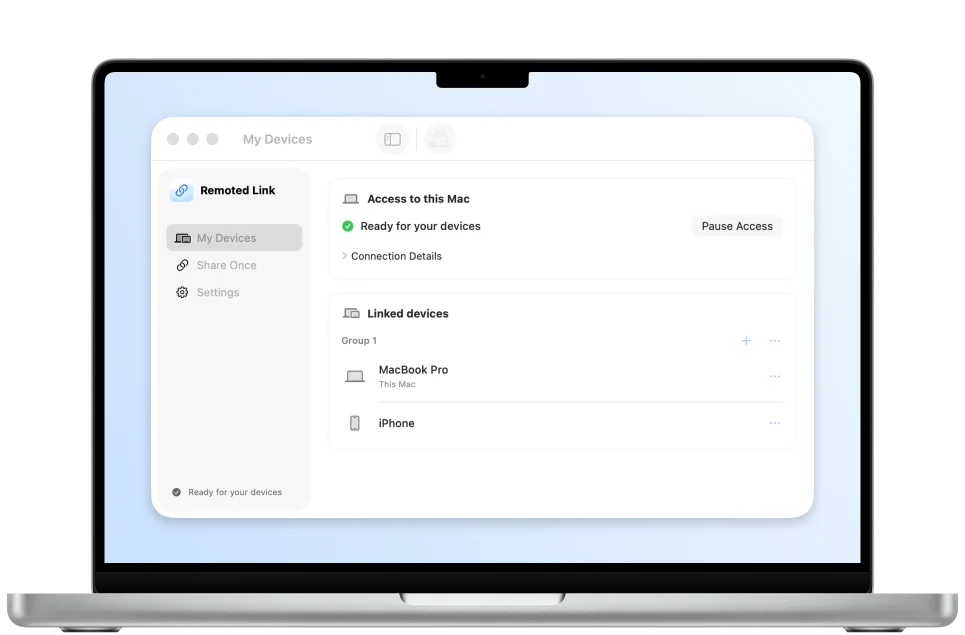
- If the Mac still cannot be reached, ask someone there to wake it, check its internet connection and confirm that access is on in Remoted Link. After a restart, an authorized user may need to unlock FileVault at the Mac first.
- If nobody can reach the Mac, you can retry later from the same paired entry. You only need a new invitation if you were still pairing and the invitation expired.
Prefer a manual connection?
- Check that the Mac is awake, connected and running Screen Sharing.
- Confirm that the Mac account is permitted to share the screen and the password is correct.
- Try the Mac’s IP address and Standard mode. If you denied local network access, on your iPhone or iPad open Settings → Privacy & Security → Local Network and enable Remoted if it is listed.
- Guest Wi-Fi can isolate devices even when they use the same Wi-Fi name. Check the network and firewall settings with the administrator.
- If the VPN is connected but the Mac is unreachable, ask the network owner to check routes, access rules and conflicting local subnets. A connected VPN alone does not prove that it can reach the Mac.
For manually added Standard connections, desktop images are not encrypted after authentication and the host’s identity is not verified. Use computers and networks you trust, or a VPN you control. Remoted Link connections use authenticated, encrypted transport between approved devices. See the privacy policy for the protections and limits of each connection method.
Need a hand?
Use Settings → About → Report a problem in Remoted, or email support@remoted.app. Include the app version and build, your device and OS, the Mac’s OS, connection mode, the error and the steps that led to it.
Do not send passwords, private network addresses or desktop content. You can review and edit the app’s email draft before sending it.